

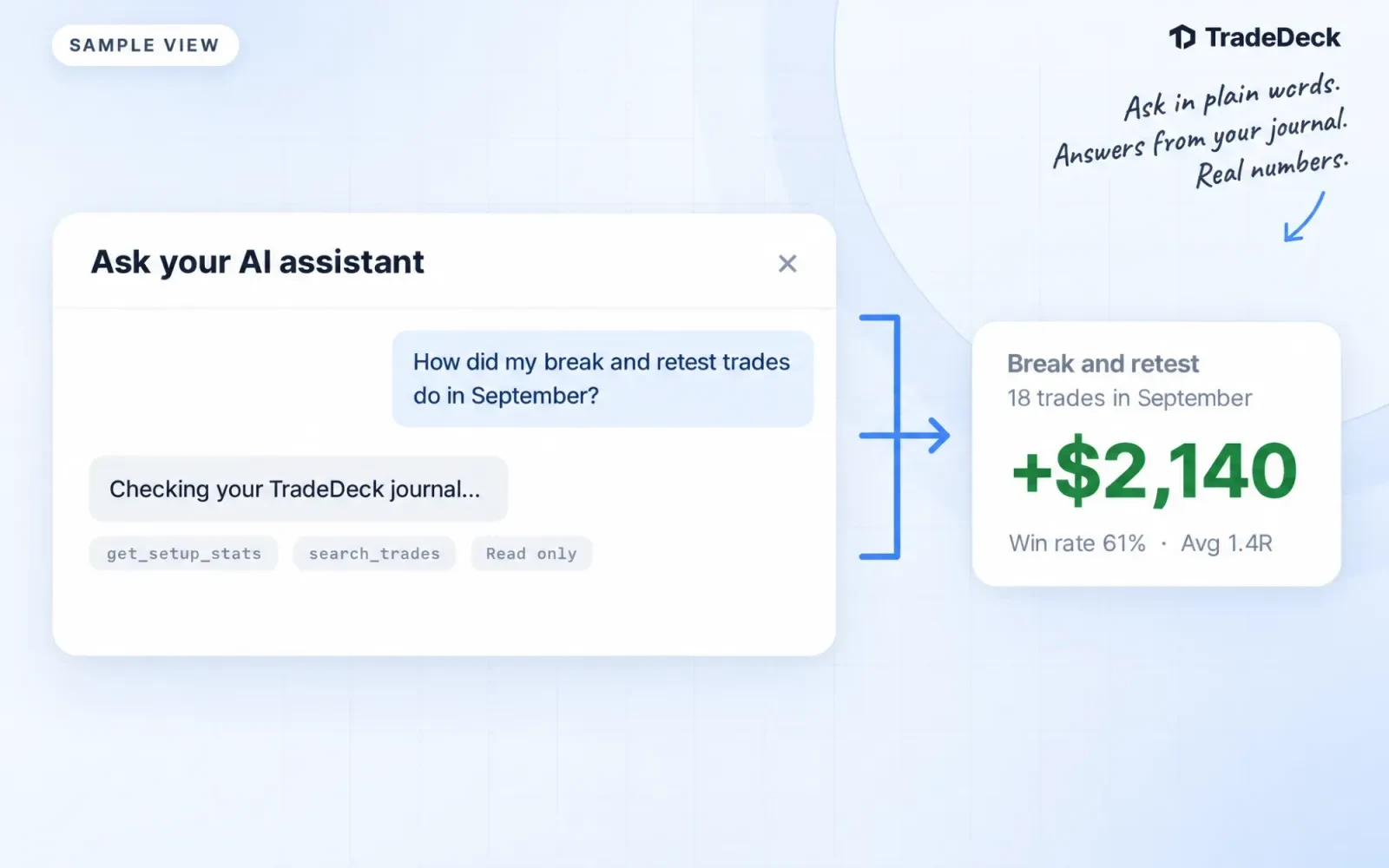
Your journal already knows how your break and retest trades did last month, which ticker costs you the most, and which risk rule you break on Fridays. Now you can ask it from the AI assistant you already use, in plain words, and get the answer from your own trades.
TradeDeck Pro adds two ways to reach your journal from outside the app:
- An assistant connection for AI apps and code editors that support MCP (Model Context Protocol), the open standard assistants use to connect to tools
- The TradeDeck API, for your own scripts, spreadsheets and dashboards
Both read the same journal you see in TradeDeck, with the same numbers as Analytics and Ollie.
What you can ask
Once an assistant is connected, it can look things up in your journal when you ask. A few questions to start with:
- How did my break and retest trades do in September, and what was my average R?
- Which ticker has cost me the most this quarter?
- What hour of the day do I lose the most, and on which weekday?
- What is my longest losing streak this year, and what happened after it?
- Which risk rule did I break most often this month?
- Pull my notes from my three worst trades last week and tell me what they have in common.
- How much have I been paid out by my prop firms this year, against what I spent on evaluations?
- What is on the economic calendar this week, and how did the last few CPI prints come in?
The assistant uses your setups, tags, notes, plans, Notebook entries, weekly reviews, risk rules and rule flags, prop firm payouts and expenses, plus this week's economic calendar and release history. It works out totals and win rates with the same stats TradeDeck uses, instead of adding up trades on its own.
Log trades and notes by asking
If you allow it, the assistant can also write to your journal:
- Log a trade from its fills. TradeDeck works out entry, exit, size and P&L, the same way it does for a file import.
- Log several trades cut from one entry together, so each one is counted once.
- Edit a trade's notes, review notes, tags, setup or grade.
- Add to a Notebook day, or write the whole day's entry.
Writing is off unless you turn it on, and nothing can ever be deleted through the connection: not trades, not fills, not accounts. Editing a note or replacing a Notebook day does replace the old text, so a good assistant will check with you first.
Your numbers in your own tools
The TradeDeck API is for anything that can make a web request. Use it to:
- Sync trades and daily results into a spreadsheet
- Build a personal dashboard or a weekly email of their stats
- Send fills from their own tools straight into the journal
- Back up their journal on their own schedule
Every endpoint, parameter and response is in the API reference, which most API tools can import.
For coaches
If you coach students in TradeDeck, a token or connection can include read-only access to the journals of students who granted you coaching access. Students who turned AI assistance off are never shared.
How to connect
Open Settings, Developer.
To connect an AI assistant that can sign you in:
1. Copy the Server URL from the setup section.
2. Add it as a new connection, or connector, in your assistant.
3. Sign in to TradeDeck on the page that opens and choose what the assistant may do: read your journal, see your trade screenshots, and log trades and notes. Screenshots and writing start unticked.
4. Select Allow. The app now shows under Connected apps, where Disconnect stops it right away.
To use a personal token instead, for a script, a spreadsheet or an editor that asks for one:
1. Under API tokens, name the token after what will use it, such as Google Sheets sync.
2. Choose its access and whether it expires in 30, 90 or 365 days, then select Create token.
3. Copy the token. It is shown once, so keep it somewhere safe. Revoke it at any time and it stops working at once.
The setup section in Settings has copy-ready steps for the most common assistants and editors.
Good to know
- The API and assistant connection are part of TradeDeck Pro, including the 7-day trial.
- If Pro ends, your tokens and connections are paused, not deleted. They work again as soon as Pro is active.
- Each token can make up to 60 requests a minute, which is plenty for an assistant answering questions.
- Treat a token like a password. Anyone who has it can use the access you gave it until you revoke it.
Try it
Open Settings, Developer, connect your assistant, and ask it how your last month went. Not on Pro yet? Start with TradeDeck Pro or the 7-day trial.
Your assistant reads your own record of your trading. It can explain and review your history, but nothing it says from your journal is investment advice.