

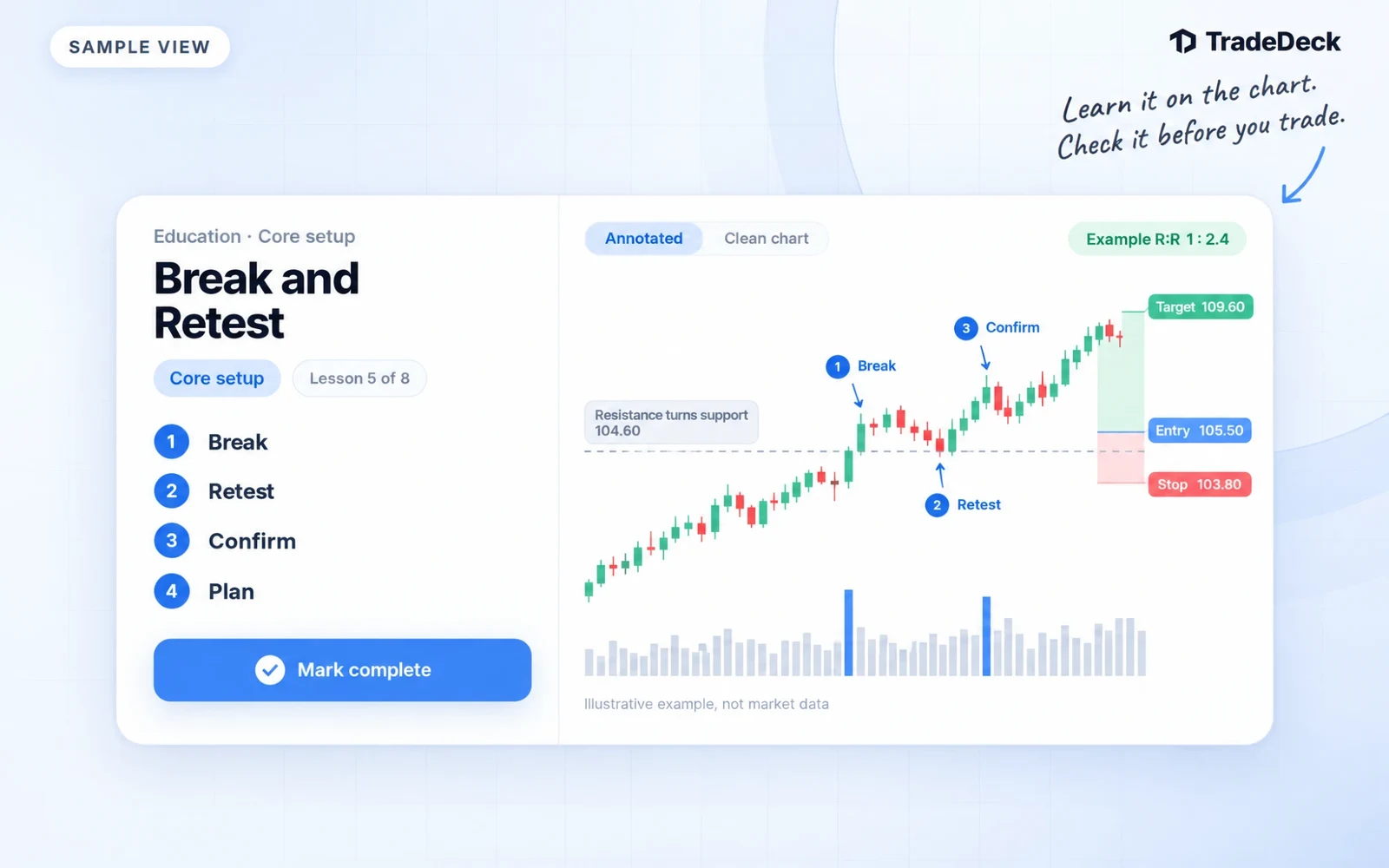
Most trading lessons explain a setup in a paragraph and leave you to picture it. The new Education hub in TradeDeck draws it. Every lesson starts with a chart, numbers the moments that matter, and ends with the checks to make before you take the trade.
What changed
- Overview, with your next lesson and what to read next
- Learning path: eight lessons in order, from support and resistance to trade planning
- Concepts: all 38 terms you hear in the videos, the Discord and the daily watchlists
- Chart patterns: 22 patterns, grouped as continuation, reversal, wedges, channels, and gaps and broadening
- Core setups: break and retest, volume confirmation, entries, exits and stops, and scaling
- Videos: the full video library, newest first
- Glossary: every term and pattern from A to Z, each linked to its lesson
One search box covers concepts, patterns and their common names, so typing flag finds the bull flag and the bear flag.
Every lesson is a chart
The eight Start here lessons and the four core setups are full lessons. Each one has:
- A numbered chart where each number matches a step, such as Break, Retest, Confirm and Plan
- Entry, stop and target drawn on the chart, with the reward to risk for the example
- A clean example next to a failed one, so you can see where the two split
- The explanation in plain words, with a worked example
- A short checklist to run before you take it
- A quick check question that tells you why the right answer is right
Switch between the annotated chart and a clean chart to practice spotting the setup without the labels. On a phone, tap a step and its point lights up on the chart.
The other concepts, from VWAP and theta to order types and fair value gaps, each have their own annotated example chart and explanation. Every pattern page draws the breakout, target and stop, and says in words where each one goes.
The charts are drawn examples made for teaching. They are not market data and do not show a real ticker.
Your progress, on every device
Mark complete at the end of a lesson saves it to your account, so the Start here path picks up where you left off in the browser or in the TradeDeck iOS app. The hub shows how far along the path you are and which lesson is next.
Your journal next to the lesson
With TradeDeck Pro, Education also reads your own trades. Once you have five closed trades, the hub shows your most-tagged setup and its win rate, how many trades this month have no setup tagged, and your most common risk rule flag. It uses those to pick what to read next: if your most flagged rule is the stop rule, stop-loss discipline comes first.
On a setup or pattern lesson, choose which of your setups it matches, and the lesson shows your trades, win rate and average R on that setup. Average R only counts trades where you set a stop, so the number is never guessed.
Pro members can also save the break and retest checklist as one of their setups with one tap. The rules then show as checkboxes when you log a trade tagged with it, so the lesson follows you into the next trade. And every lesson has Ask Ollie, the assistant in your journal, for questions about the setup or your own history with it. Ollie explains and reviews, and never recommends a trade.
What is free and what is Pro
The whole library is included for every TradeDeck member: the lessons, charts, patterns, glossary, videos and progress. Your journal numbers, saving a checklist as a setup, and Ask Ollie are part of TradeDeck Pro.
Try it
Open Education and start with lesson one, support and resistance, or go straight to break and retest. If you already know the basics, the chart patterns section is a good place to test your eye.
Education teaches how setups work. It is not a signal service, and nothing in TradeDeck is investment advice.